How to downgrade from Tahoe to Sequoia

How to downgrade from macOS Tahoe to Sequoia

Looking to downgrade your Mac from macOS Tahoe to macOS Sequoia? Follow this tutorial to get started! 💻

Important Notes:

Looking to downgrade your Mac from macOS Tahoe to macOS Sequoia? Follow this tutorial to get started! 💻

Note: Most of my data was stored on an external SSD, so I didn’t lose many files. I performed a full clean install of macOS Sequoia, but some files were transferred to it from my Tahoe disk partition after the installation.

Requirements:
• An Intel Mac or Apple Silicon Mac that supports Sequoia — check the compatibility list to confirm your Mac is supported. Check here
• A USB drive (or external SSD) with at least 16 GB of storage. It’s best if the drive is empty or has lots of available space, since we will be wiping the drive.

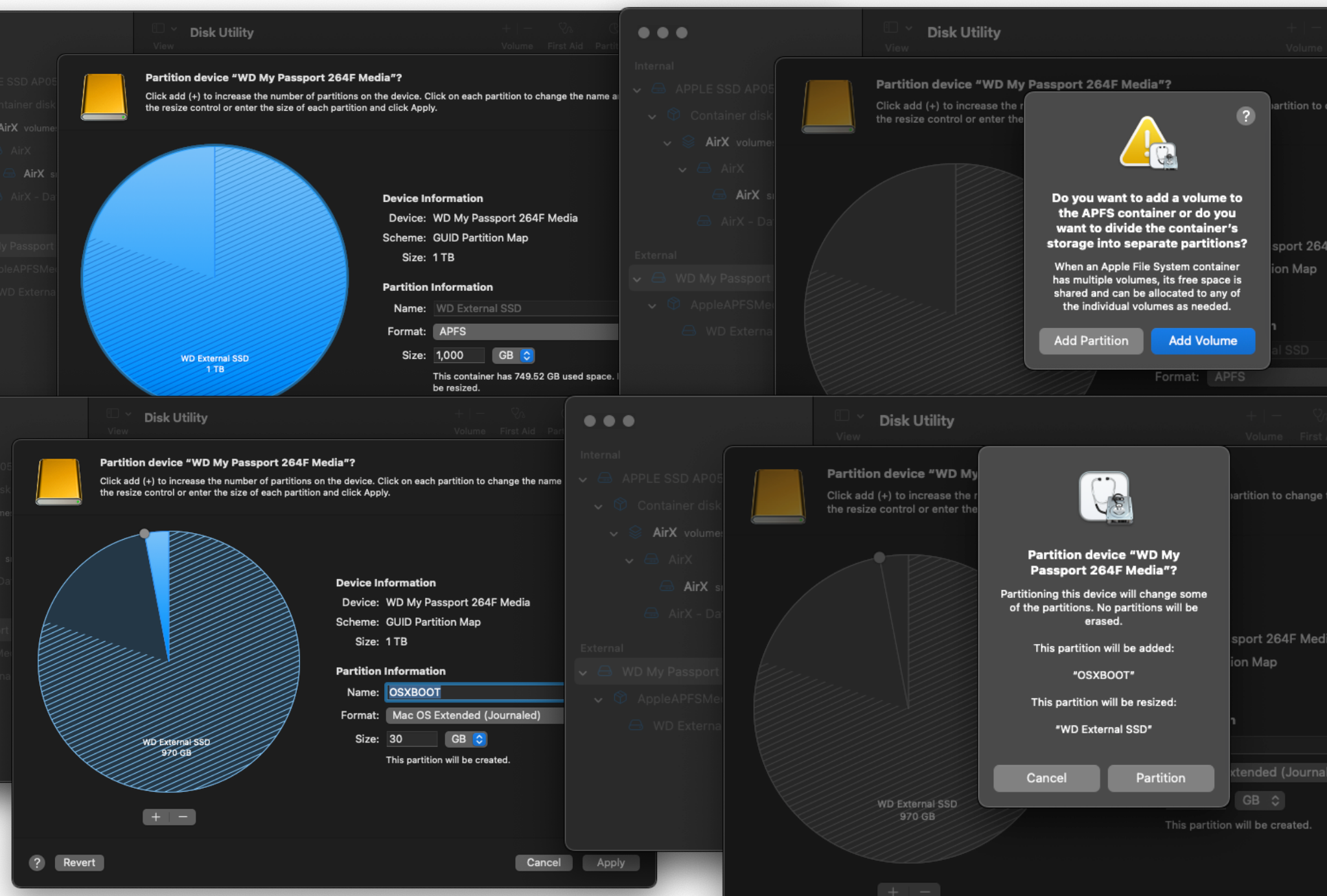
*If you don’t have a spare drive, you can create a new partition on your external drive and use it as the bootable drive. Be careful not to delete the existing partition or your data will be wiped. This is the workaround I used, and it worked perfectly. My data on the existing partition was not affected.
The steps in this guide were performed on an M3 MacBook Air.

If you encounter any issues during the downgrade, don't hesitate to reach out for assistance. You can DM me on X at @iTechExpert21 and I'll be happy to guide you through the downgrade.

Instructions:

Step 1: Download the Installer

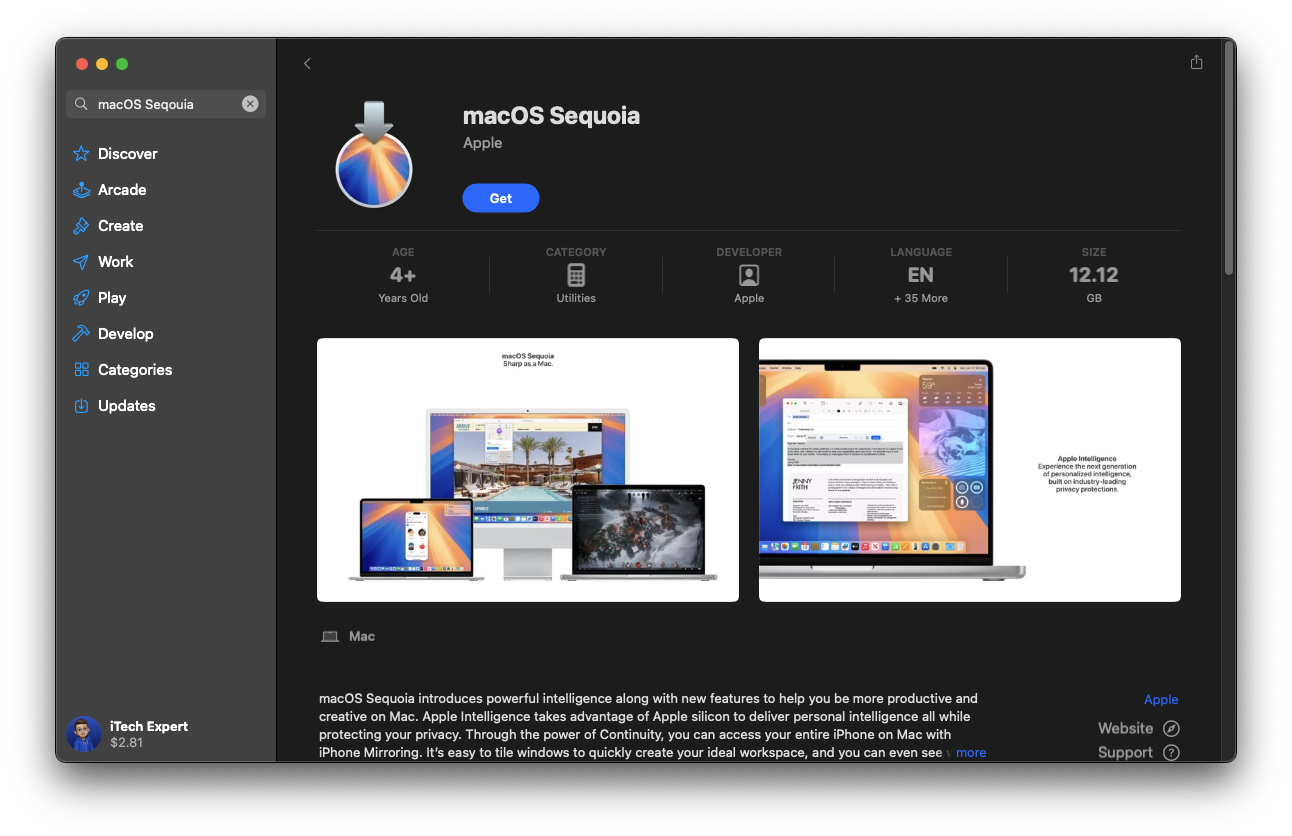
Download the macOS Sequoia installer from the App Store.

Once the download finishes, grab a spare USB drive (preferably one with no data on it) since it will be erased.

*If you don’t have a spare drive, you can create a new partition on your external drive and use it as the bootable drive. Be careful not to delete the existing partition or your data will be wiped. This is the workaround I used, and it worked perfectly. My data on the existing partition was not affected.
Step 2:

Method 1 (Spare Drive)
1. Open Disk Utility.
2. Select your USB drive or external SSD.
3. Click Erase.
4. Set the format to Mac OS Extended (Journaled).
5. Confirm to erase the drive.

Method 2 (No Spare Drive)
1. Open Disk Utility.
2. Select your USB drive or external SSD.
3. Click Partition.
4. Click + to add a partition (at least 20GB+).
5. Format it as Mac OS Extended (Journaled).
6. Apply the changes and wait for it to finish.

Note: After the installation is complete, you can erase the USB or delete the partition to reclaim the storage space used by the installer.

If you don’t see all drives (including the internal drive) in Disk Utility, click View in the menu bar and select Show All Devices.

Step 3: Create the Bootable Installer

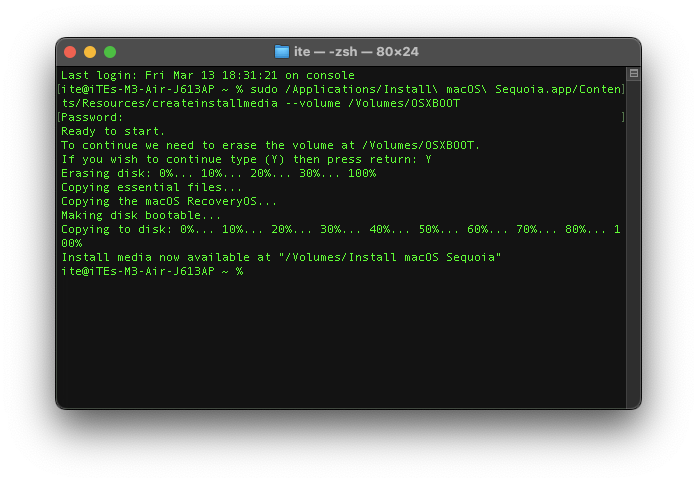
1. Open Terminal and paste this command:
'sudo /Applications/Install\ macOS\ Sequoia.app/Contents/Resources/createinstallmedia --volume'
2. Drag your formatted drive into Terminal so its path is added to the command.
3. Press Enter and follow the prompts to create the bootable installer.
4. When it finishes, shut down your Mac.

Step 4: Choose Your Installation Method

You have 2 options:

Option 1: Full Clean Install
Erase your internal drive and install Sequoia.

Option 2: Dual-Boot (Keep Tahoe Volume)
Create a new volume so you can boot into Tahoe or Sequoia.

Step 4A: Option 1 — Full Clean Install

Boot into Recovery Mode.

Intel: Hold Command + R while the Mac starts.
Apple Silicon: Press and hold the Power button until Startup Options appears, then select Options and click Continue.

Then:
1. Quit the installer when it opens.
2. Open Disk Utility.
3. Click View → Show All Devices.
4. Select APPLE SSD (internal drive).
5. Click Erase.
6. Set a name for the new drive, format it as APFS, and set the scheme to GUID Partition Map.

After the erase finishes:
1. Restart your Mac and open Startup Options using the steps for your Mac model below.
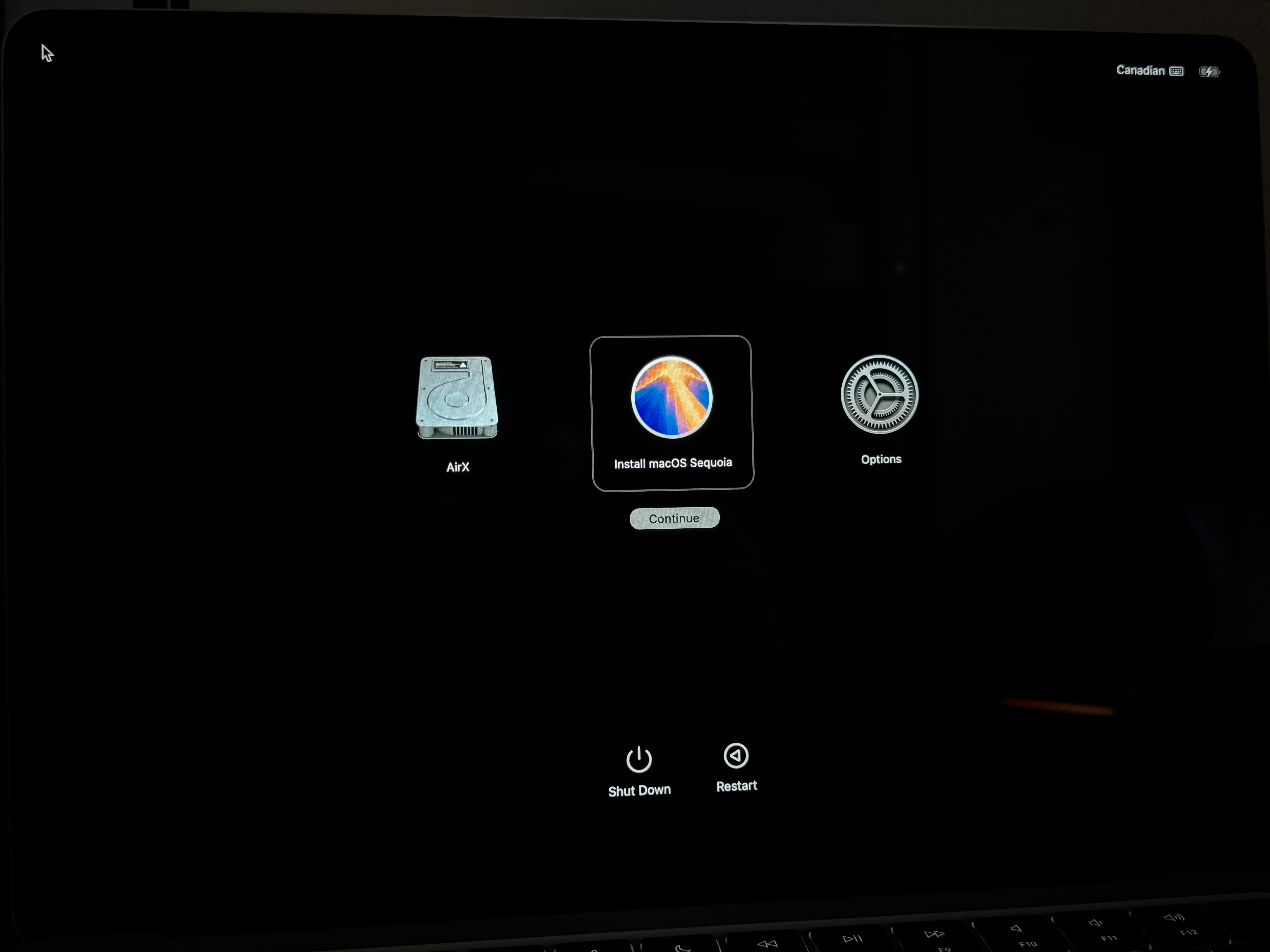
2. Select the Install macOS Sequoia drive, then let your Mac boot it.
3. See step 5 for installation instructions.

Apple Silicon: Press and hold the Power button until Startup Options appears.
Intel Macs: Restart and hold the Option (⌥) key during startup.

Step 4B: Option 2 — Dual-Boot (Keep Tahoe Volume)

Boot into Recovery Mode.

Intel: Hold Command + R while the Mac starts.
Apple Silicon: Press and hold the Power button until Startup Options appears, then select Options and click Continue.

Next:
1. Open Disk Utility.
2. Click View → Show All Devices.
3. Select the APFS Container under APPLE SSD (the name will be something like Container disk3).
4. Click Add Volume, then name it anything you want.
5. Set the format to APFS, then add the volume.
6. See step 5 for installation instructions.

This will be your Sequoia volume. Tahoe will remain bootable with your existing data.

Note: You’ll need to manually transfer files from Tahoe to Sequoia. A Tahoe backup cannot be restored on Sequoia.

Step 5: Install macOS Sequoia

1. Return to the Recovery main screen.
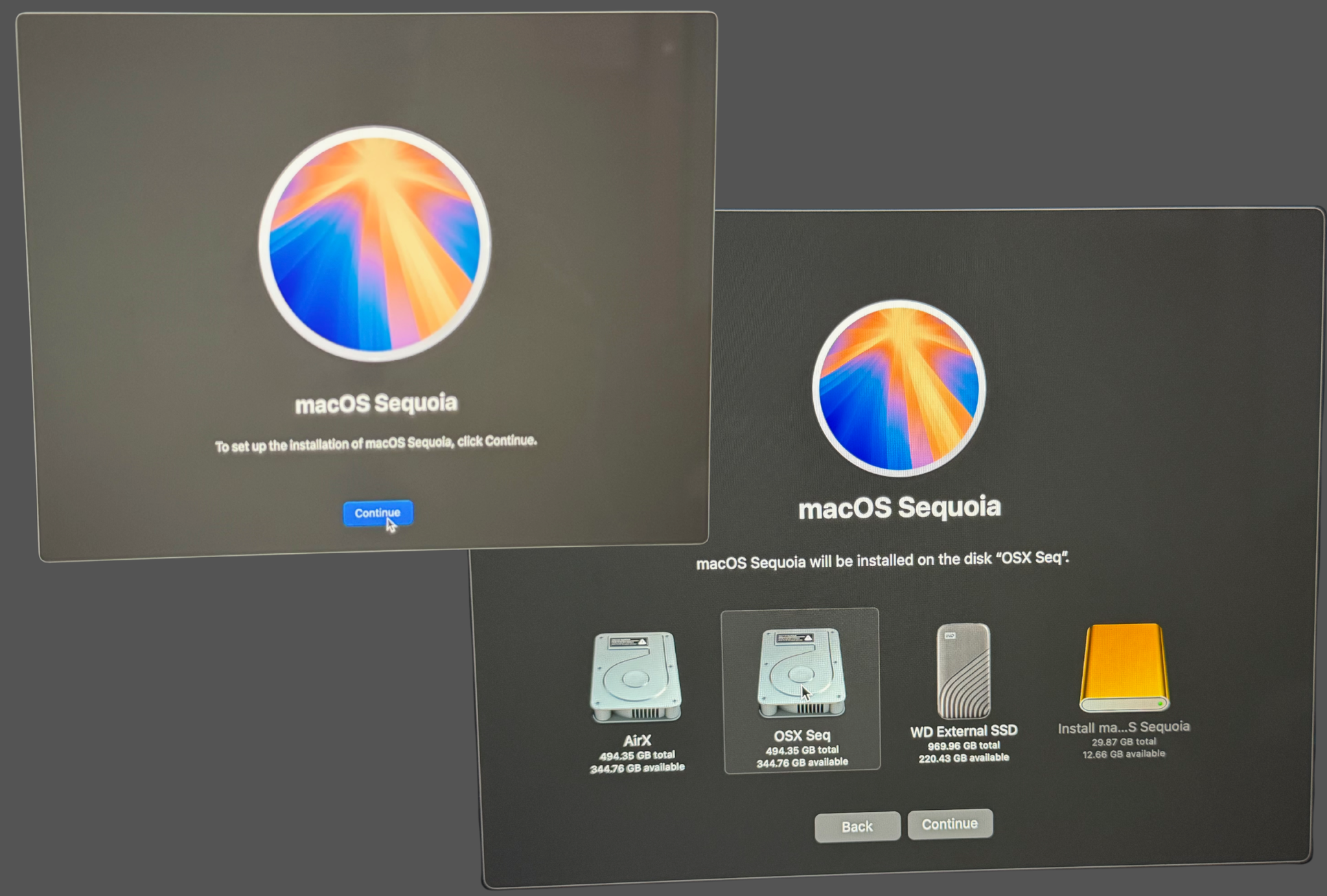
2. Select Install macOS Sequoia.
3. Click Continue, then choose your installation destination.
4. Follow the prompts and wait for the installation to finish.

Step 6: Finish Setup

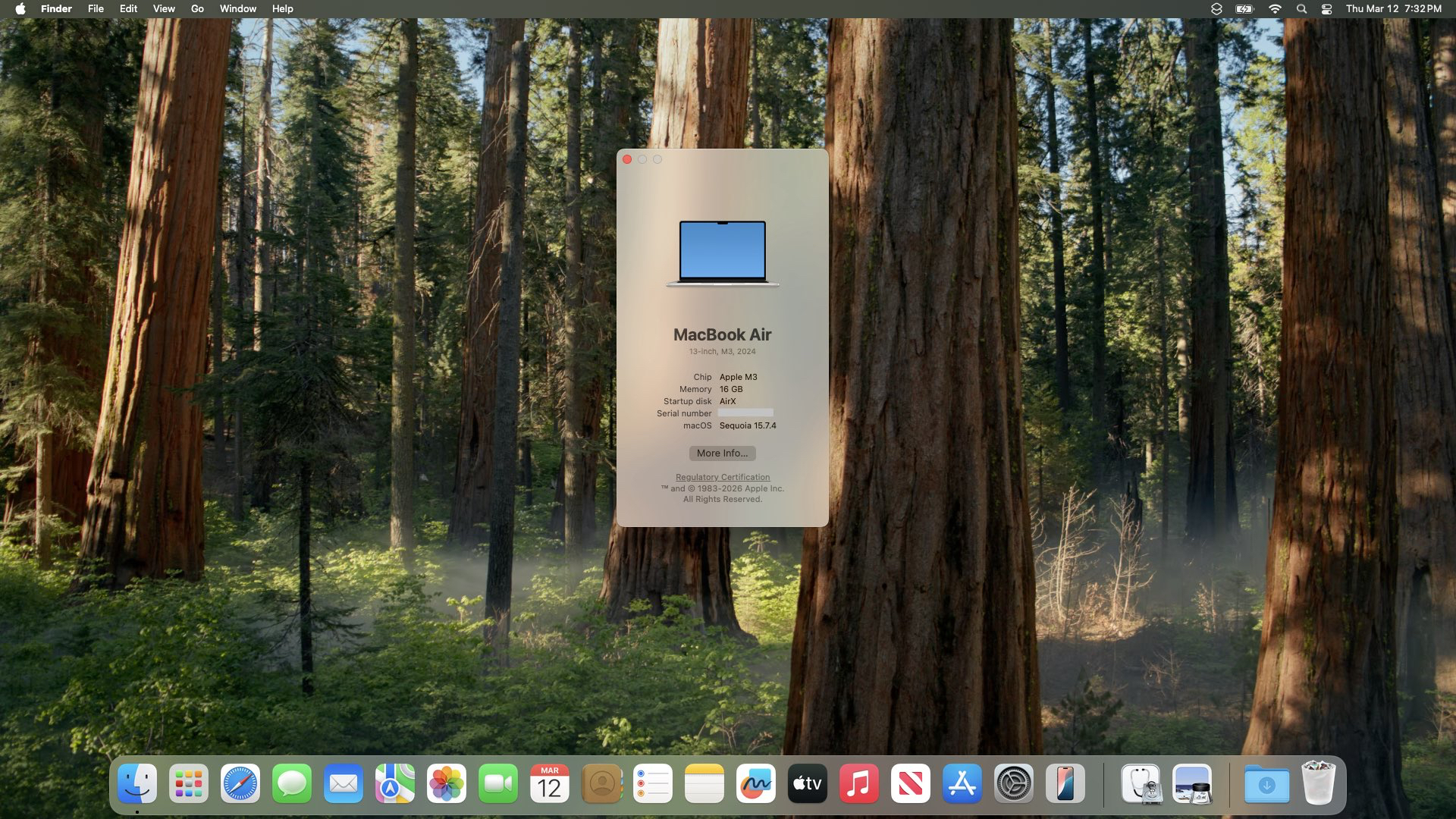
Complete the setup just like you would on a new Mac, and you’re good to go! You’re now running macOS Sequoia!

If you installed Tahoe on a different partition (as I did) and want to move files from the Tahoe drive to the new drive, continue to step 7. Otherwise, you’re all set. See step 8 for instructions on how to delete the Tahoe volume.

Step 7 (Optional): Transferring Files from Tahoe

If you have important files on Tahoe, you can retrieve them by shutting down your Mac, then booting into Tahoe. Once you’re in, copy the files to a place where you can access it on the new drive, and then move them over.

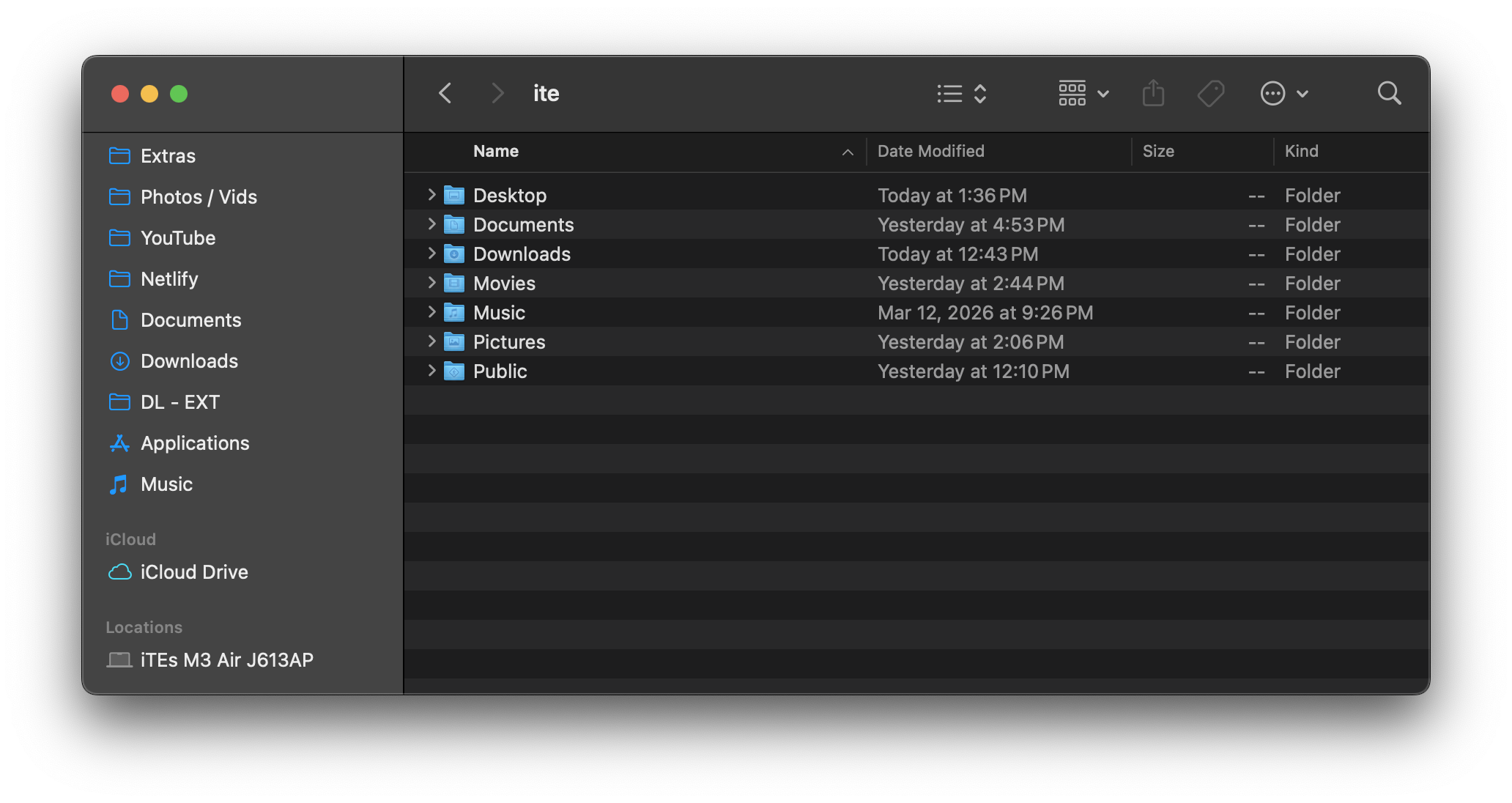
Another way to transfer your files is by using Finder (this is the method I used). First, open Finder. In the sidebar under Locations, click your Mac. Then open the Tahoe drive, go to Users, and open your username folder. From there, you can copy the files you want and move them to your new drive. I didn’t have many files to transfer because most of my files were already on my external SSD.

For step 8, if you'd like, you can follow the instructions to delete the Tahoe volume. Once the volume is deleted, you will no longer be able to boot it since it will no longer exist.

Step 8 (Optional): Deleting Tahoe Volume

Important: Make sure your files have been moved to your Sequoia drive or another secure location, as the Tahoe volume will be deleted and your files will be gone.

To select the Mac startup disk:
1. Restart your Mac and open Startup Options using the steps for your Mac model below.
2. Select the Sequoia volume, then let your Mac boot it.

Apple Silicon Macs: Press and hold the Power button until Startup Options appears.
Intel Macs: Restart and hold the Option (⌥) key during startup.

To recover your full storage space:
1. Shut down your Mac, then boot into the Sequoia volume.
2. Open Disk Utility, then select the Tahoe volume.
3. Delete the Tahoe volume.

© 2022 – Present iConfig Realm. iConfig Realm is not affiliated with Apple Inc.