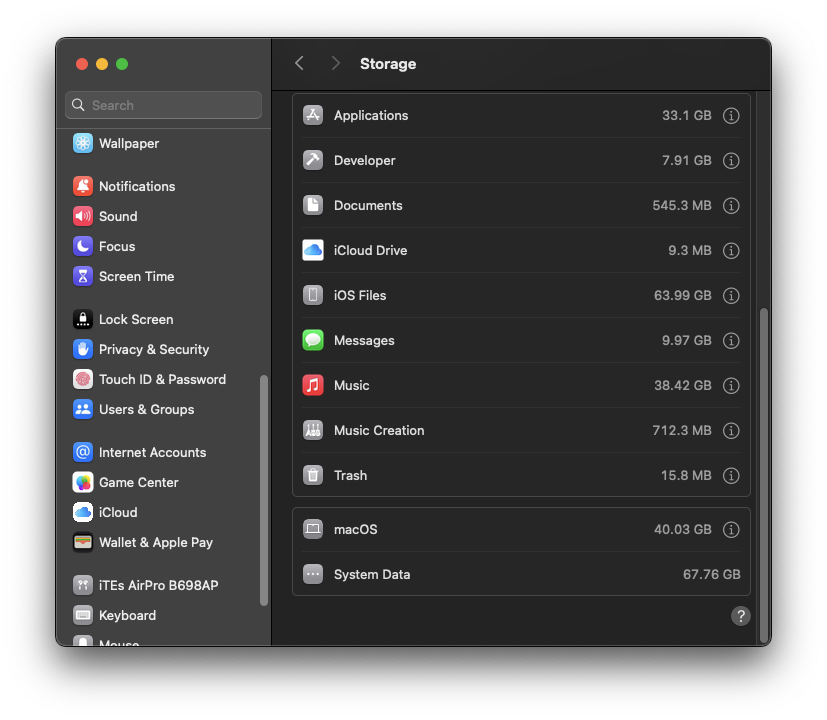
Step 1:
Open System Preferences, navigate to Storage, and scroll to the bottom of the page. Note how many GB are being used by System Data. Next, download the SH cleanup file below. We will run this file to clean up the system data.
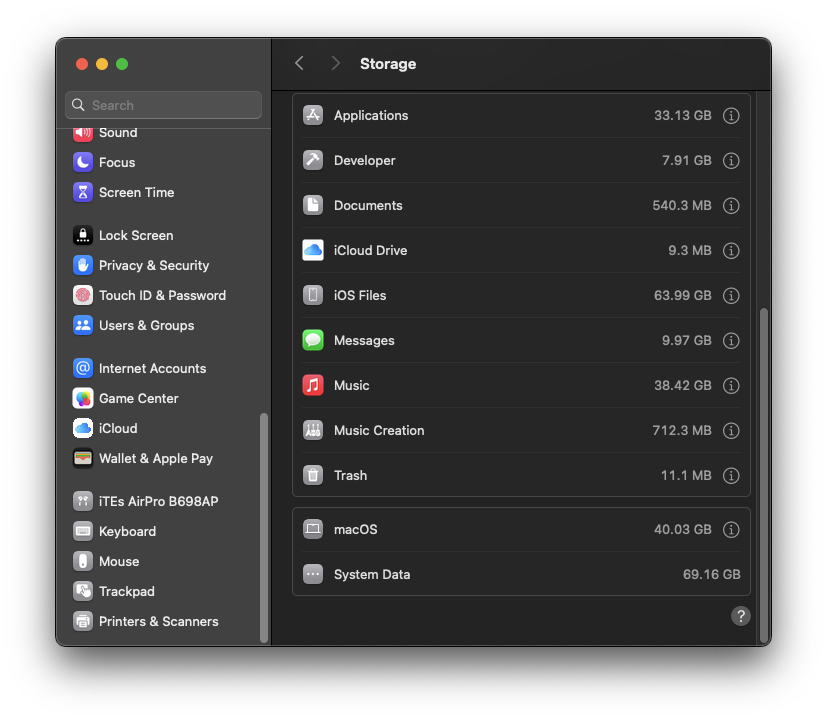
Quickly clean up gigabytes of system data on your Mac.
This tutorial hasn’t been tested on many Macs—only two so far—because no one responded when I asked for volunteers to test it. I created a poll and 14 people voted, but only one person actually messaged me.
⚠️ Warning: This script performs advanced macOS cleanup and modifies some system files. It deletes logs, caches, analytics data, and local Time Machine snapshots, and disables several macOS diagnostic and analytics services.
This script has only been tested on a few Macs. Use it at your own risk. You can open the .sh file yourself to see exactly what it does. I am not responsible for any damages caused, but I will try to provide support if needed.
Open System Preferences, navigate to Storage, and scroll to the bottom of the page. Note how many GB are being used by System Data. Next, download the SH cleanup file below. We will run this file to clean up the system data.
Once the .sh file has been downloaded, open Terminal and run the following commands:
Steps:
1. Run: cd ~/Downloads && chmod +x rcache.sh
2. Run: sh rcache.sh
3. Restart your Mac.
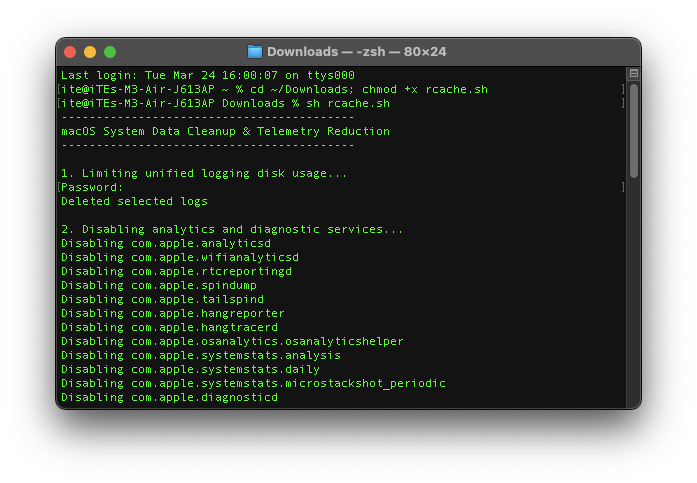
Once you’ve finished these steps, open System Preferences again and check whether the System Data storage (in GB) has been reduced.