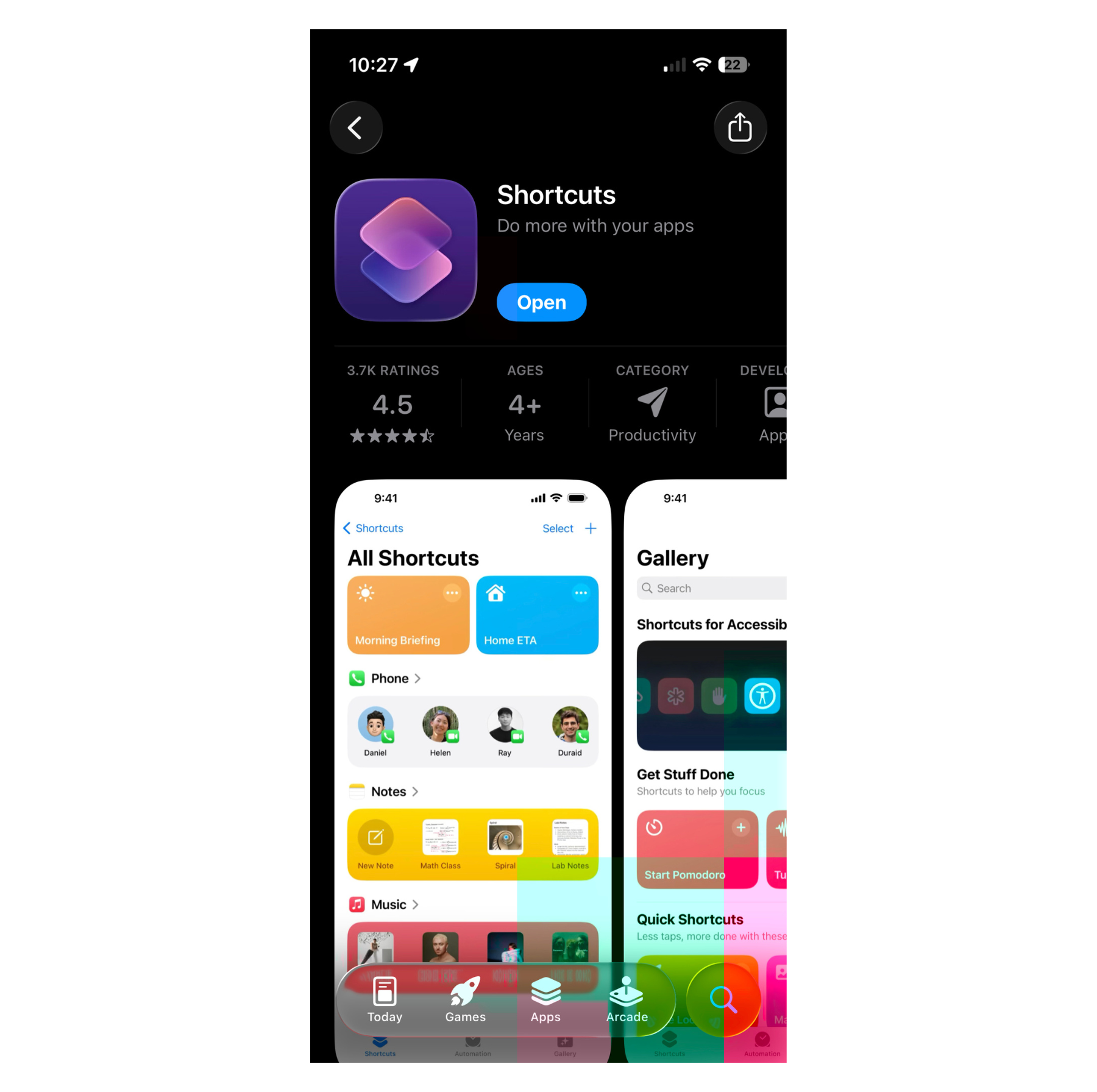
Step 1:
Download and install the Shortcuts app, then create a new messages automation.
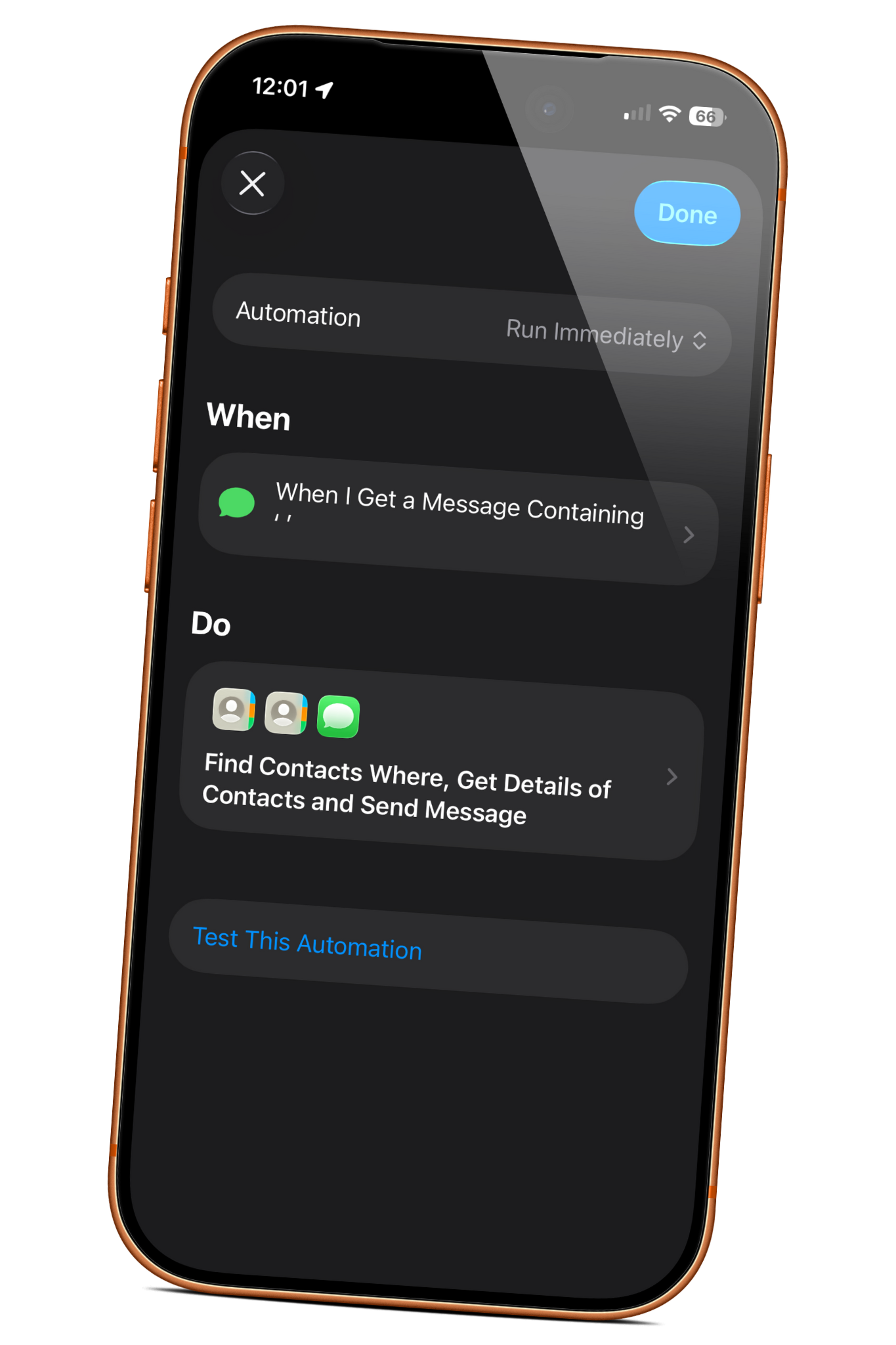
How to automatically forward iMessages and text messages to other contacts using the Shortcuts app. It’s a super handy trick that I’m sure you’ll like!
“Unfortunately, this method doesn’t work for apps like WhatsApp, Viber, etc. It only works with the default Messages app.”
To forward all incoming messages which contains a space, simple put a space in the “Message Contains” field. Alternatively, you can add all contacts to the sender list and have shortcuts automatically forward messages from those senders to whoever. I don’t see any other ways for this sadly.
If you'd like a video tutorial, I have a video tutorial you can watch: Watch Now. If you could give it a like and join the iTech Expert family by hitting that subscribe button! It means a lot to me. 😊
Download and install the Shortcuts app, then create a new messages automation.
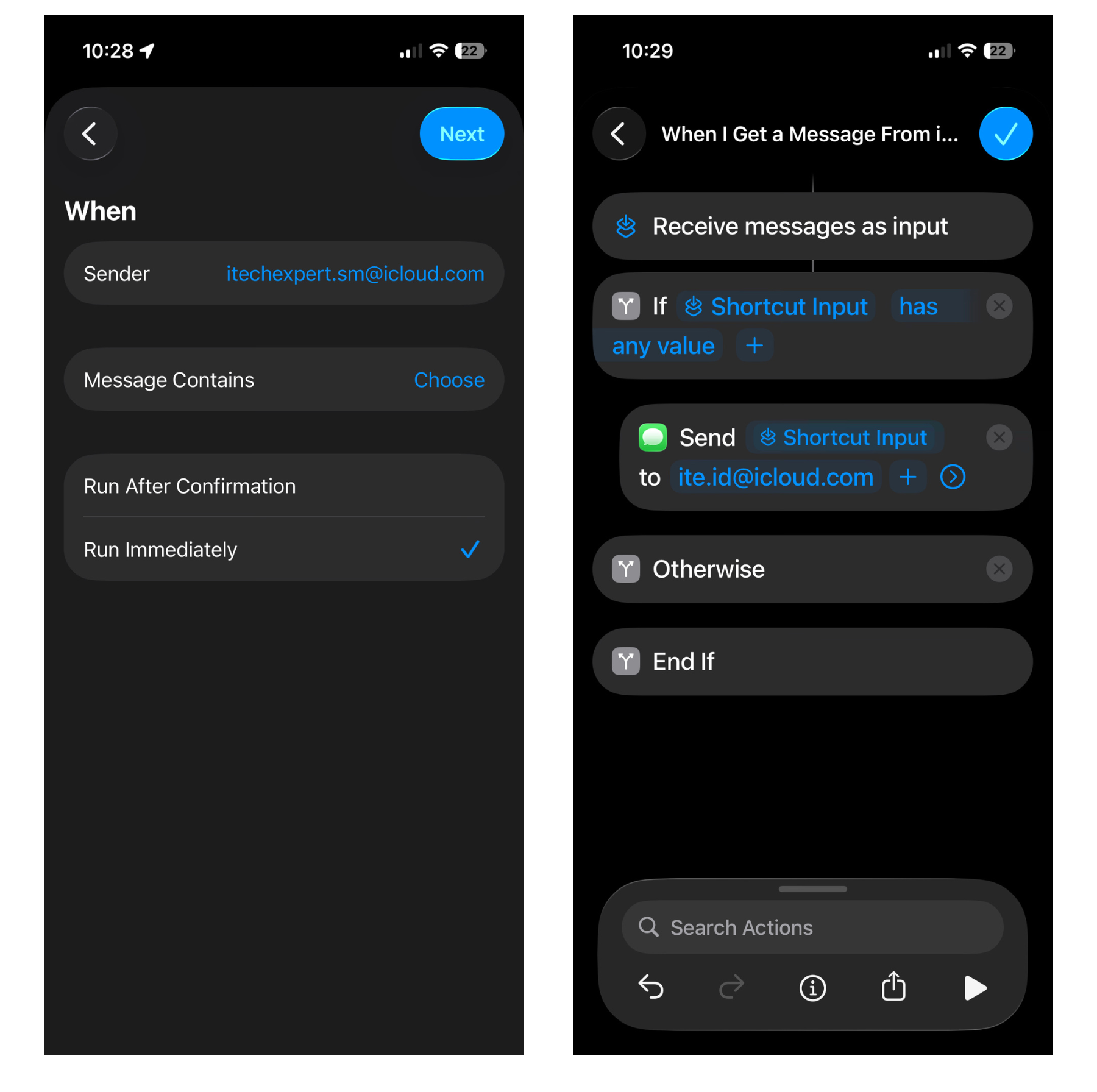
If you want to receive messages from a specific friend or contact, select "Sender." Alternatively, you can choose "Message Contains," which means the message you want to auto-forward must include the specific word or phrase you entered in the "Message Contains" field.
When you're finished, create a new blank automation. Tap and hold the "Send Message" action, then drag and drop it under the "If" action (as shown in the screenshot). Click "Recipient" and type the number or email you want to forward the message to, then click "Done" or the checkmark when you're finished, and you're good to go!
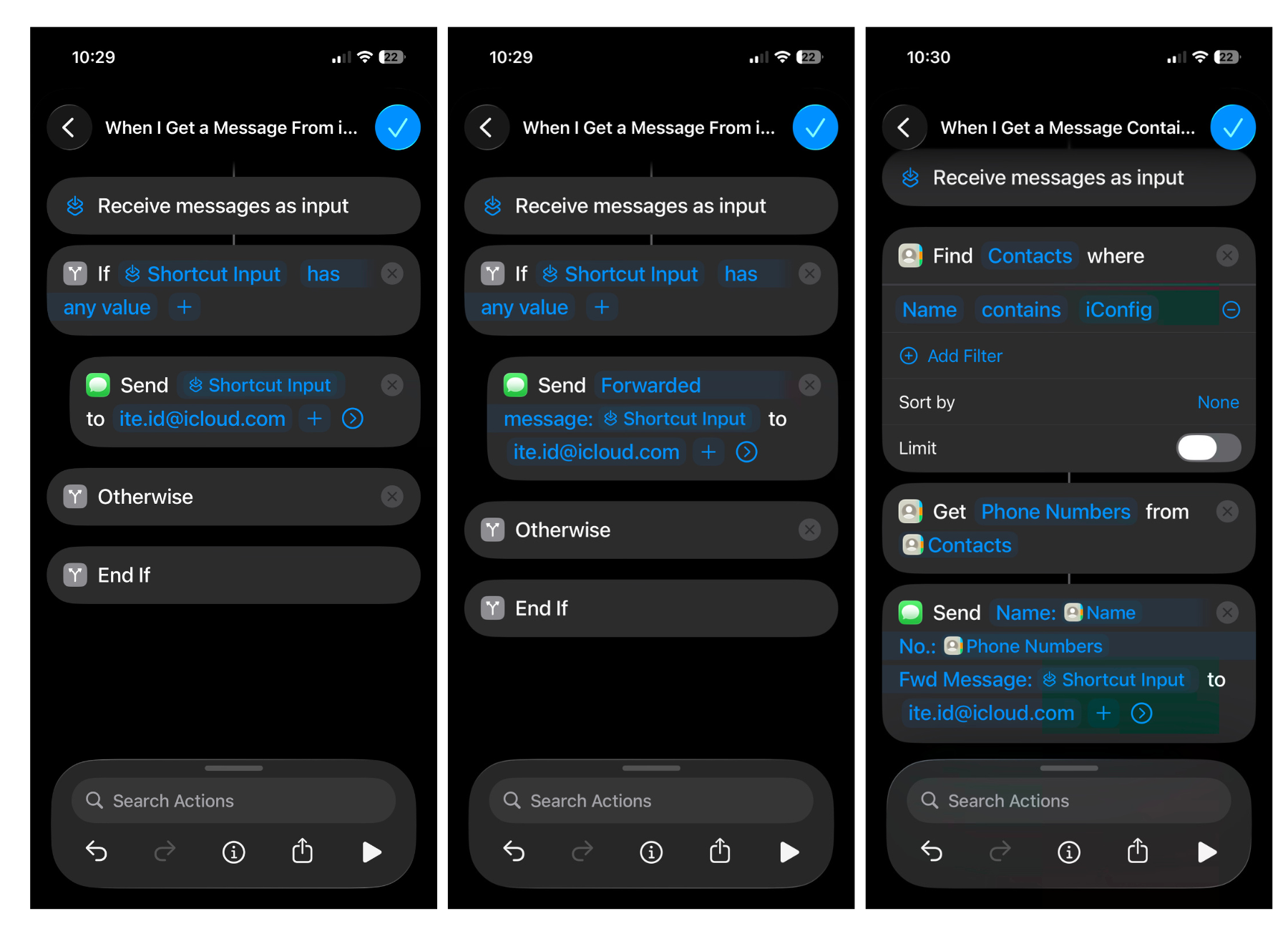
If you'd like to include any other message in the forwarded message, move on to step 3.
Click the “Message” field in the action and type the text you want to send. You can include details like your contact’s name, phone number, and of course the message you want to forward. Check the screenshots for tips on how to organize the message properly.
Click "Recipient" and type the number or email you want to forward the message to, then click "Done" or the checkmark when you're finished, and you're good to go!